

Users and Licenses
Introduction
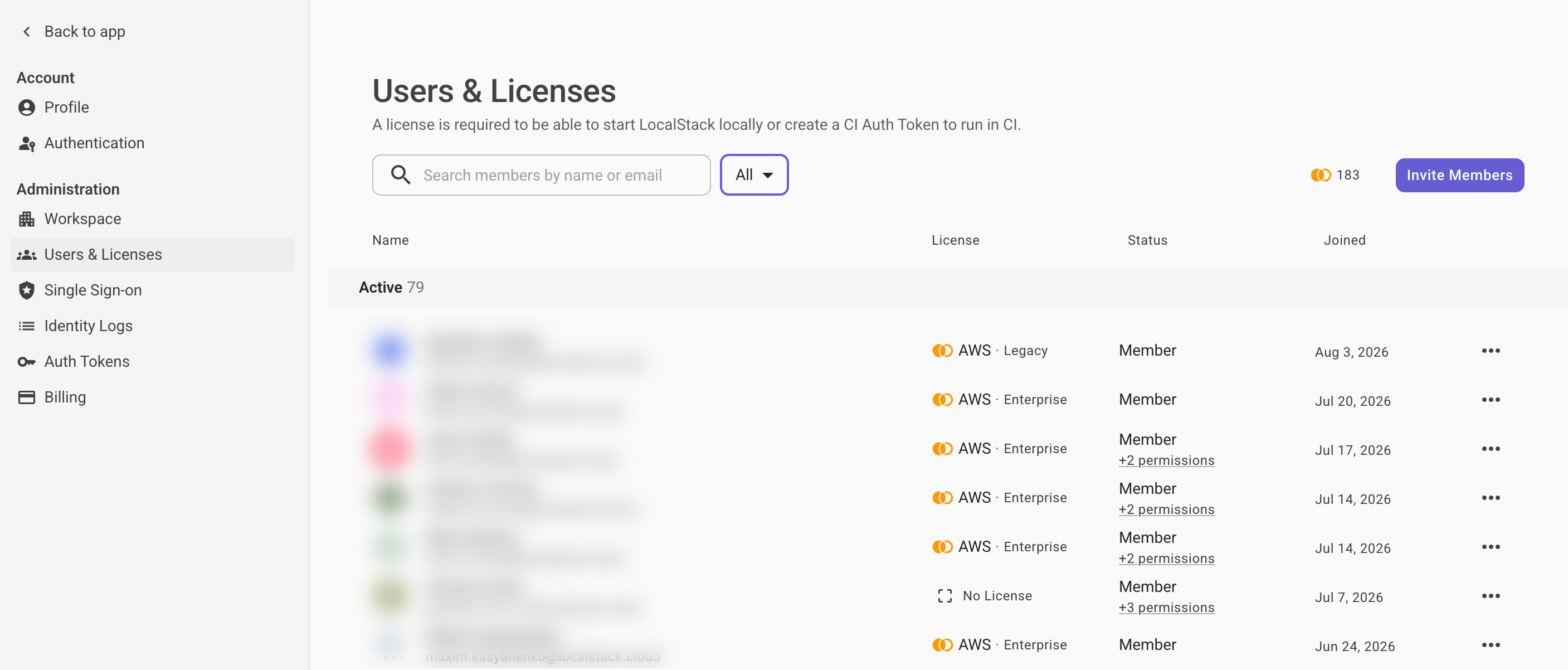
Section titled “Introduction”The Users & Licenses page in the LocalStack Web Application allows workspace administrators to manage workspace memberships, assign licenses, and transition members from legacy API keys to the new license system.
To access this page:
- Click your name or organization’s name in the top-left corner of the dashboard.
- Go to Settings → Users & Licenses under the Administration section.
Member Roles
Section titled “Member Roles”Each member of a workspace is either a Workspace Admin or a Workspace Member. The role determines which parts of the workspace they can access and manage.
The table below summarizes what each role can do:
| Action | Workspace Admin | Workspace Member |
|---|---|---|
| Invite new members | ✅ | ❌ |
| Remove members from workspace | ✅ | ❌ |
| Assign or unassign licenses | ✅ | ❌ |
| Change member roles (e.g., promote to Admin) | ✅ | ❌ |
| Configure advanced permissions | ✅ | ❌ |
| Access Auth Tokens | ✅ | ✅ |
| Use assigned LocalStack licenses | ✅ | ✅ |
Key differences
Section titled “Key differences”- Administrative control: Only Admins can open the Administration section of Settings to manage workspace membership and the license pool.
- License management: Admins distribute available licenses from the subscription plan to specific members through the Users & Licenses dashboard.
- Role management: Admins can switch any member between Admin and Member.
Managing Members
Section titled “Managing Members”Inviting Members
Section titled “Inviting Members”To invite someone to your workspace:
- Click Invite Members.
- Enter the email of the person you want to invite.
- Check the option to automatically assign a license (optional).
- Send the invite.
If the invitee does not have a LocalStack account, they will receive an email to create one.
Removing Members
Section titled “Removing Members”To remove a member from the workspace:
- Click the ⋯ menu at the right of their row.
- Select the option to remove them from the workspace.
You can re-invite them anytime.
Managing Roles and Permissions
Section titled “Managing Roles and Permissions”Use the ⋯ menu at the right of a member’s row to view and edit their role.
- Set them as Admin or Member
- Configure advanced permissions if available
Managing Licenses
Section titled “Managing Licenses”Licenses are part of subscription plans and are shown in the License column of the members list.
- To assign or change a license: Click directly on the license name for a member to open the license dropdown.
- To unassign a license: Select the no-license option from the same dropdown.
- A license can be reassigned at any time.
Changes apply immediately and don’t require user action.
Migrating from Legacy API Keys
Section titled “Migrating from Legacy API Keys”Previously, access was granted via personal developer API keys.
Why move to Auth Tokens?
Section titled “Why move to Auth Tokens?”- Auth Tokens are more secure and rotate-friendly.
- Admins can manage licenses without the member needing to change configurations.
- Members authenticate once with the token; the license is linked automatically.
Migration Process
Section titled “Migration Process”- Go to the Workspace Members list.
- Assign a license to a member.
- Ask the member to switch their config to use an Auth Token (available in the Auth Tokens page).
- Remove the legacy API key once the Auth Token is in use.
Deprecation Notice
Section titled “Deprecation Notice”Legacy API keys are still supported for now, but will be phased out over the coming months. We recommend migrating to licenses and Auth Tokens as soon as possible.